Applications Policy Details
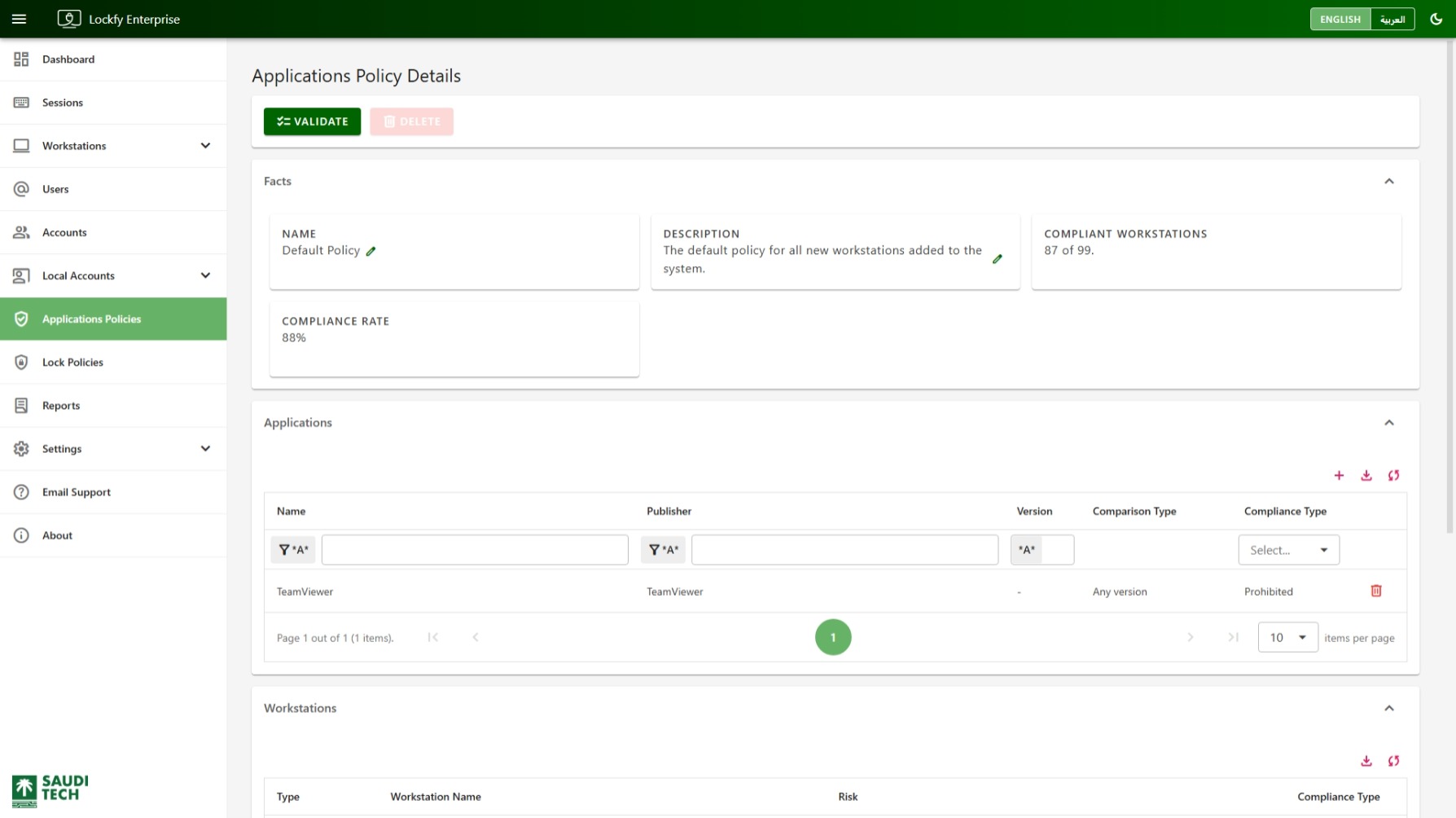
This page shows the configuration and compliance state of a single applications policy. Use it to review the policy summary, define which applications are required or prohibited, and see which workstations assigned to the policy are currently compliant.
The list of applications that can be added to the policy is drawn from the applications inventory detected across managed workstations, so any installed application can be marked as required or prohibited by the policy.
Policy Actions
Section titled “Policy Actions”The page header can expose the following actions:
Validate: Recalculate compliance for workstations assigned to the policy.Delete: Remove the policy when it is no longer needed. Policies that have workstations assigned to them cannot be deleted.
The facts section summarizes the selected policy:
Name: The policy name. It can be edited directly from the facts card.Description: A short explanation of the policy purpose. It can also be edited from the facts card.Compliant Workstations: How many assigned workstations currently satisfy the policy.Compliance Rate: The percentage of assigned workstations that are compliant.
Applications
Section titled “Applications”This section lists the application rules that make up the policy. Each row shows the application name, publisher, version, comparison type, and compliance type.
Lockfy supports two rule styles:
Required: The application must exist on the workstation for the device to be compliant.Prohibited: The application must not exist on the workstation. If it is detected, the device is not compliant.
Each rule can also be matched in one of two ways:
Any version: Apply the rule to the application regardless of version.This specific version: Apply the rule only to the exact version entered in the rule.
Applications Table Filters
Section titled “Applications Table Filters”Use the filter row to narrow the rule list:
Name: Search by application name.Publisher: Search by software publisher.Version: Search by the configured version string.Compliance Type: Filter to required or prohibited rules.
Applications Table Actions
Section titled “Applications Table Actions”- add Add a new application rule to the policy.
- download Export the current data set to Excel.
- sync Refresh the list.
- Remove a rule from the policy.
Add Application Rule
Section titled “Add Application Rule”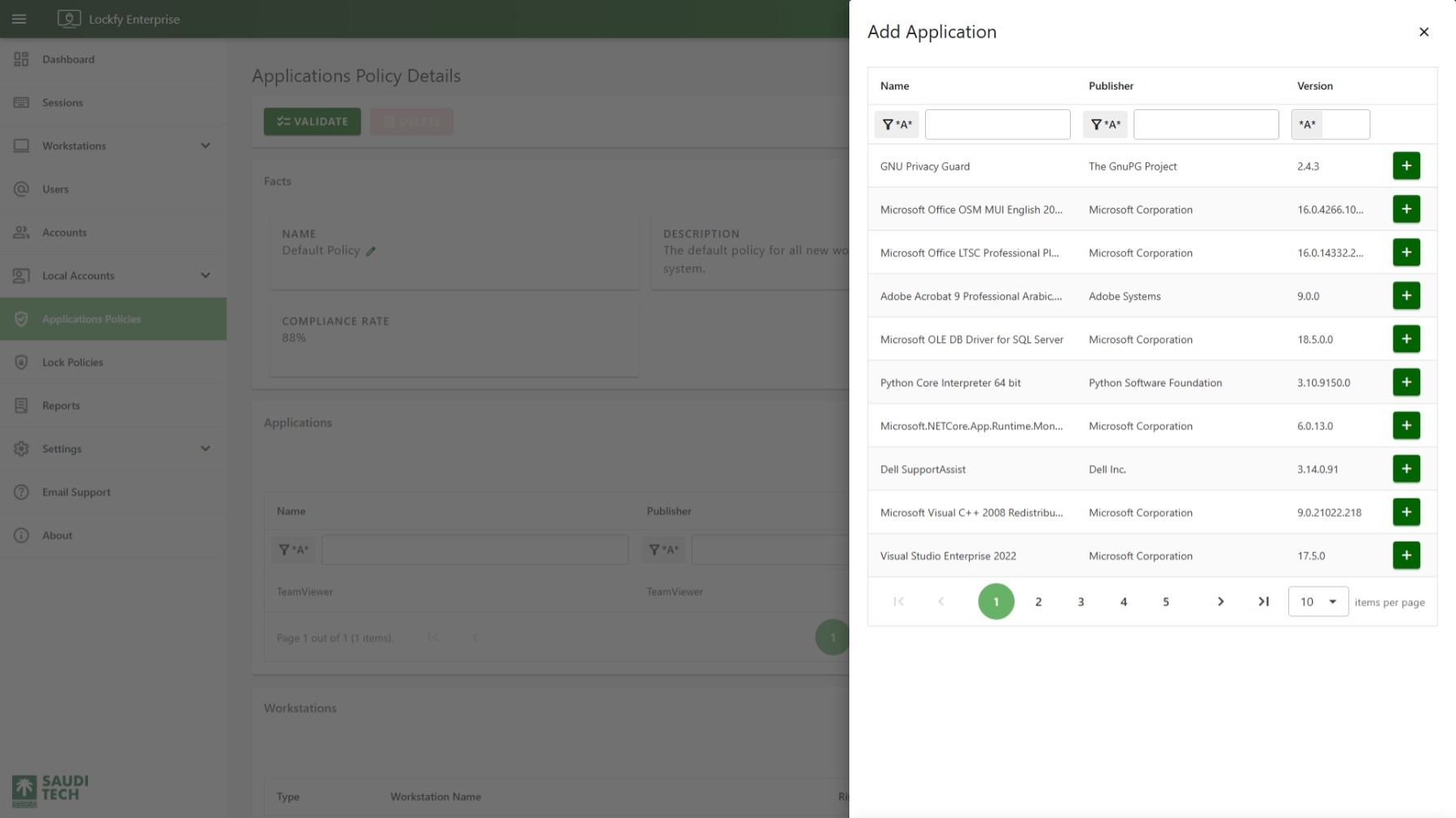
Select in the Applications section to open the Add Application panel. This list is populated automatically from application inventory reported by Lockfy agents.
Use the panel filters to search by:
NamePublisherVersion
Select the button next to an application to start creating a policy rule for that detected application.
Configure Application Rule
Section titled “Configure Application Rule”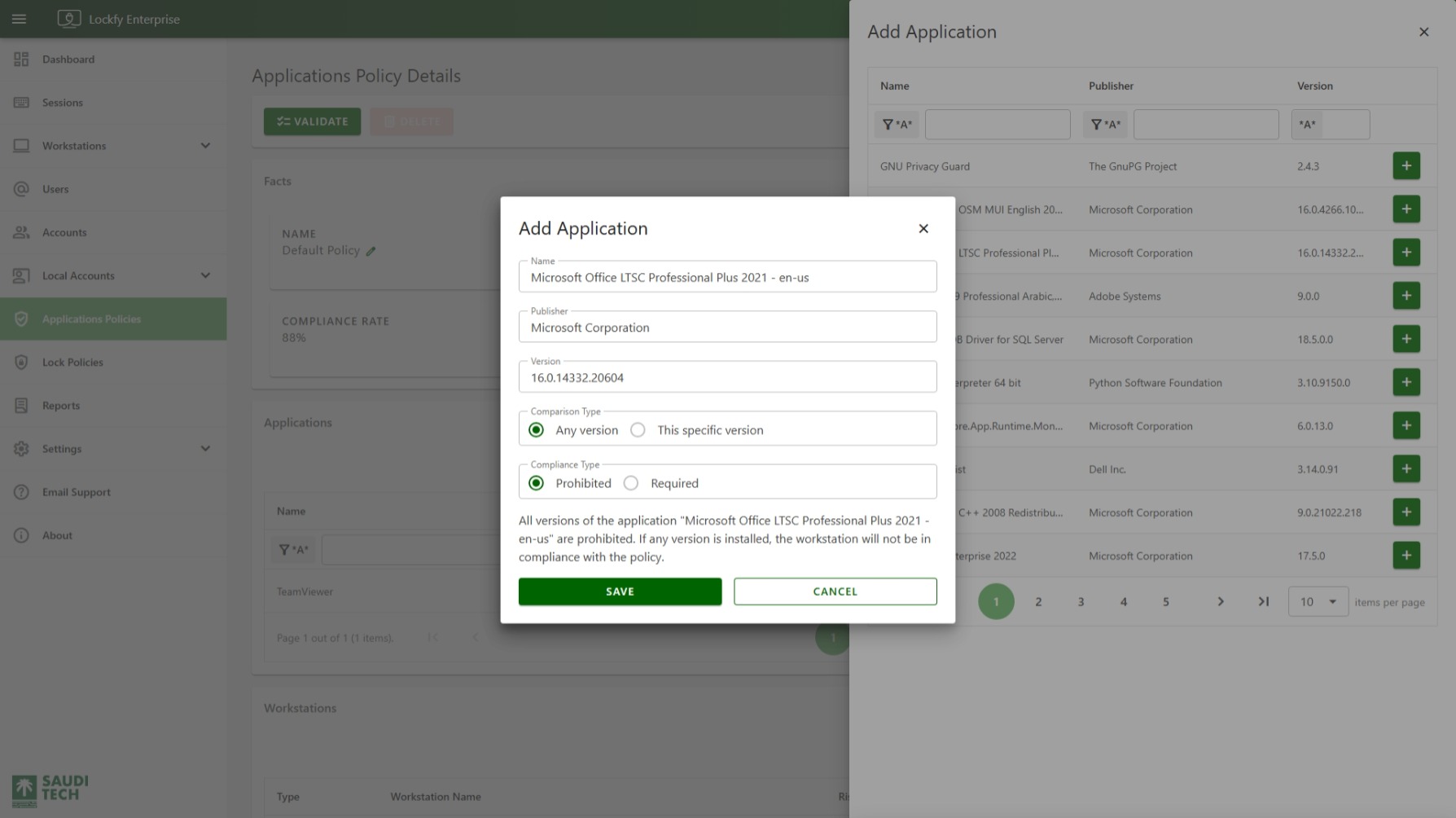
After selecting an application from the side panel, Lockfy opens a dialog where you define how that application affects compliance.
The dialog includes:
Name: The detected application name.Publisher: The detected publisher value.Version: The detected application version.Comparison Type: Choose betweenAny versionandThis specific version.Compliance Type: Choose whether the application isProhibitedorRequired.
If you configure a prohibited rule for Any version, any detected installation of that application makes the workstation non-compliant. If you configure a required rule, the workstation must report that application to satisfy the policy.
Select Save to add the rule to the policy, or Cancel to close the dialog without making changes.
Workstations
Section titled “Workstations”The Workstations section lists devices assigned to the selected applications policy. Use it to identify which workstations are compliant and which devices still need remediation.
The table includes columns such as workstation type, workstation name, risk, and compliance type.
Selecting a workstation name opens the related Workstation Details page so you can investigate inventory, compliance requirements, sessions, and local account state on that endpoint.
Workstations Table Actions
Section titled “Workstations Table Actions”- download Export the current data set to Excel.
- sync Refresh the list.