Access Grants
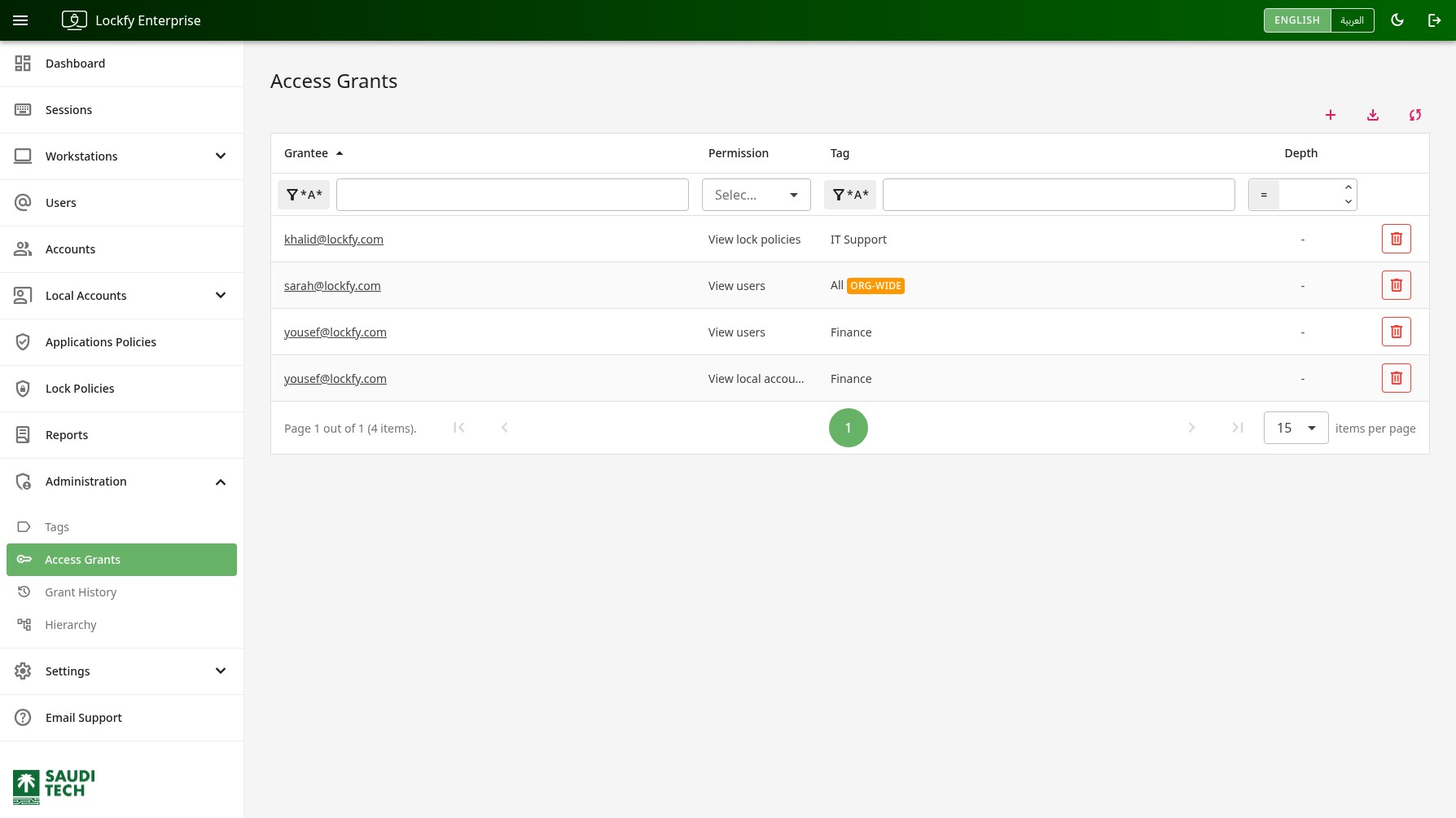
An access grant gives one person one permission over one scope. Grants are how you let a department lead manage their own team’s workstations, or a service-desk operator work on the devices they are responsible for, without making them a full administrator of the environment.
This page is the audit view — “who can see what”. Use it to review existing delegation and to issue or withdraw access.
Grants Table
Section titled “Grants Table”Each row is a single grant.
Grantee: The person receiving the access. Select the address to open their user page.Permission: What they are allowed to do. See Permissions.Tag: The scope the permission applies to. A grant covering the whole organization shows theAlltag with anORG-WIDEbadge.Depth: For a grant over a manager’s team, how far down the reporting line it reaches. Shows-for grants that are not team-based.
The table header includes the following quick actions:
- add Issue a new grant.
- download Export the current data set to Excel.
- sync Refresh the list.
Each row includes the following action:
- delete Revoke the grant.
Issuing a grant
Section titled “Issuing a grant”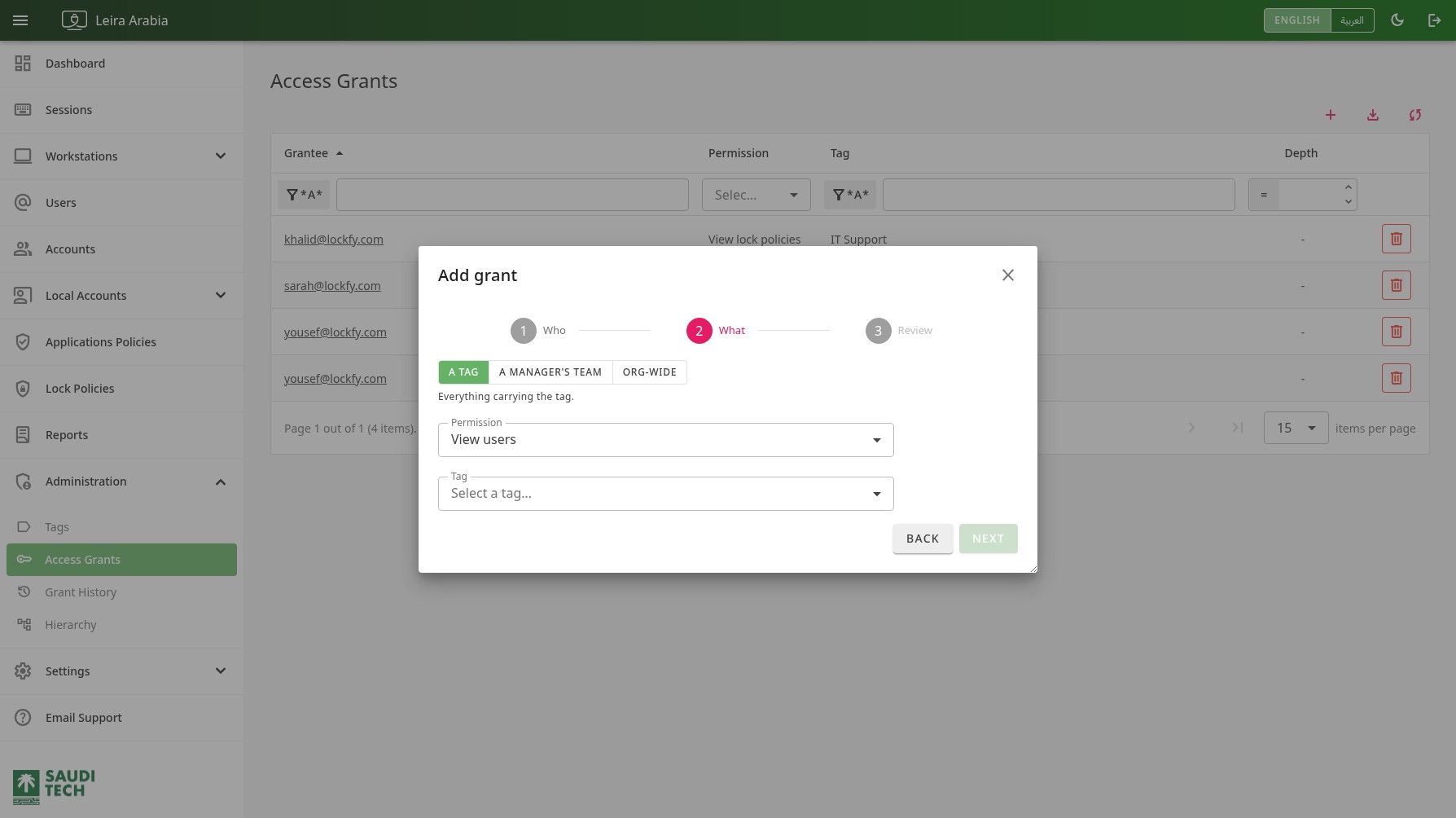
Selecting add opens a three-step wizard.
- Who — search for the person receiving the access.
- What — choose the scope and the permission.
- Review — confirm what the grant will allow before it is issued.
At the What step you choose one of three scopes:
A tag: Everything carrying the tag. The grant follows the tag, so resources tagged later are included automatically.A manager's team: Everyone reporting to the chosen manager, as far down the reporting line as you choose. Reporting lines come from the Hierarchy page.Org-wide: Every workstation, user, and other resource in the organization — including ones added later.
Team-based grants ask how far down the reporting line the access reaches:
Direct reports: Only the people who report to the manager directly.{n} levels below: The manager’s reports and their reports, down to the depth you choose.Everyone below: The manager’s entire subtree, however deep it goes.
Permissions
Section titled “Permissions”A grant carries exactly one permission. Grant several to the same person if they need more than one.
| Permission | What it allows |
|---|---|
View users | See the users in scope, their accounts, and their sessions |
View workstations | See the workstations in scope and their sessions |
View local accounts | See local account details on the workstations in scope |
Access local account passwords | Retrieve and randomize local account credentials, and see the password audit trail |
View lock policies | See the lock policies in scope |
Edit lock policies | Change the lock policies in scope |
View applications policies | See the applications policies in scope |
Edit applications policies | Change the applications policies in scope |
Control users | Change account risk and reassign account owners |
Control workstations | Act on the workstations in scope — risk, agent, processes, local accounts, and policy assignment |
Terminate sessions | Lock and sign off sessions |
Permissions that need a companion
Section titled “Permissions that need a companion”Some permissions only describe what you may do, not what you may see, and have no effect unless the grantee can also see the resource. Edit lock policies without View lock policies is inert, for example. The wizard warns you when the permission you have chosen needs a companion grant.
Revoking a grant
Section titled “Revoking a grant”Selecting delete withdraws the access immediately. Revoking is always available, even when auditing is unavailable, so that access can be withdrawn quickly during an incident.
Revoked grants are not deleted from the record — every grant issued and revoked is retained on the Grant History page.
Org-wide grants
Section titled “Org-wide grants”An org-wide grant is the widest access Lockfy can delegate short of full administration, and it keeps applying to resources added after it was issued. It can only be issued by a global administrator.
If SIEM integration is not recording the User/Role Changed event, the wizard warns that the grant will not produce a SIEM audit record. The grant is still allowed — the warning tells you which audit trail you will not get. The grant is recorded in Grant History either way.