License

Use the License page to review the current Lockfy license state and enter the activation credentials provided during onboarding. The page contains two tabs: License Information and License Credentials.
If the installation is not activated, Lockfy shows a red notification bar indicating that the copy is not licensed.
Unlicensed or Expired State
Section titled “Unlicensed or Expired State”When the installation is unlicensed, the banner explains that Lockfy is not activated and directs you to either activate an existing license or contact sales to obtain a new one.
If you do not have a license, or if the current license has expired, contact sales to obtain a valid replacement license.
License Information Tab
Section titled “License Information Tab”The License Information tab displays the currently applied license details.
The fields shown include:
Licensed To: The licensed customer or organization name.License Expiry: The date and time when the current license expires.Total Workstations Licenses: The number of workstation licenses included in the current license.Total Servers Licenses: The number of server licenses included in the current license.
Use this tab to confirm who the license is issued to, when it expires, and how much workstation and server capacity is available under the current entitlement.
License Credentials Tab
Section titled “License Credentials Tab”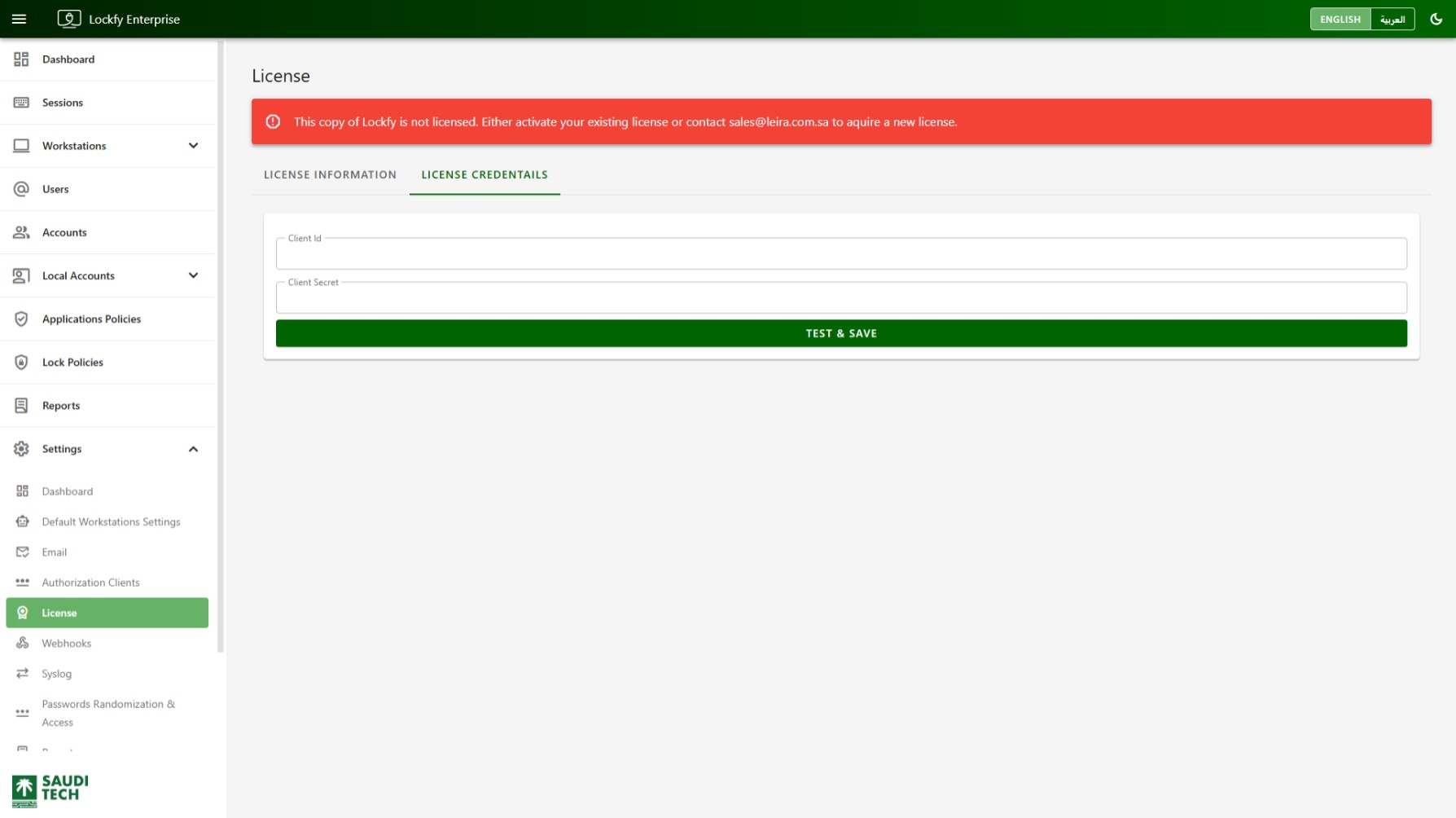
The License Credentials tab is used to activate the Lockfy installation or update its license.
To activate Lockfy, enter the credentials you received in your onboarding document:
Client IdClient Secret
After entering the credentials, select Test & Save to validate them and apply the license.
Activation Guidance
Section titled “Activation Guidance”Use the License Credentials tab whenever:
- The installation is newly deployed and has not yet been activated.
- The current license has expired and has been replaced with new credentials.
- You were given updated activation credentials as part of onboarding or renewal.
If the entered credentials are valid, the active license details should then appear in the License Information tab.