Lock Policy Details

This page shows the full configuration of a single lock policy. Use it to review the default idle behavior for unlisted applications, define application-specific overrides, and identify which workstations are assigned to the policy.
Lock policies support two behaviors:
Ignore offenders & lock: Ignore the override and force the machine to lock immediately when idle is detected.Delay locking for specific time: Allow idle for a defined amount of time before Lockfy locks the machine.
When delay mode is used, the idle allowance can be defined globally in the policy for unlisted applications or overridden per application in the Applications section.
Delay mode can also control notifications. Administrators can choose whether the user is notified when idle is detected but temporary delay is allowed. This is useful when the user may need to take action from the mobile app before leaving the workstation unlocked.
Policy Actions
Section titled “Policy Actions”The page header can expose the following action:
Delete: Remove the policy when it is no longer needed. The default lock policy can be recreated automatically if it is removed.
The facts section summarizes the selected policy:
Name: The policy name. It can be edited directly from the facts card.Description: A short explanation of the policy purpose. It can also be edited from the facts card.Workstations Count: The number of workstations currently assigned to the policy.
Settings
Section titled “Settings”This section defines how Lockfy behaves when idle is detected on assigned workstations.
Unlisted Behavior: The default action used for applications that do not have their own override in the policy.Delay Locking Duration: The amount of time Lockfy waits before locking when the selected behavior uses delay mode.Delay Push Notifications: Whether users are notified when idle is detected during a delayed-lock period.
If the default behavior is Ignore offenders & lock, Lockfy forces the lock immediately when idle is detected for unlisted applications. If the default behavior is Delay locking for specific time, Lockfy waits for the configured duration and then locks the workstation if the idle condition still applies.
Applications
Section titled “Applications”This section lists application-specific overrides for the lock policy. These overrides are based on applications or executables detected by the agent that can influence, suppress, or justify exceptions to normal lock timing.
Each row shows:
Name: The detected executable or application name.Description: Override details describing the detected behavior or reason for the exception.Default Behavior: Whether this application should useIgnore offenders & lockorDelay locking for specific time.Allowed Idle Time: The app-specific delay duration when delay mode is used.Delay Idle Notifications: Whether the user should be notified during the delay period for that application.
Application-specific settings override the policy defaults for matching applications.
Applications Table Filters
Section titled “Applications Table Filters”Use the filter row to search by:
NameDescriptionDefault Behavior
Applications Table Actions
Section titled “Applications Table Actions”- add Add an application-specific override to the policy.
- download Export the current data set to Excel.
- sync Refresh the list.
Add Application Override
Section titled “Add Application Override”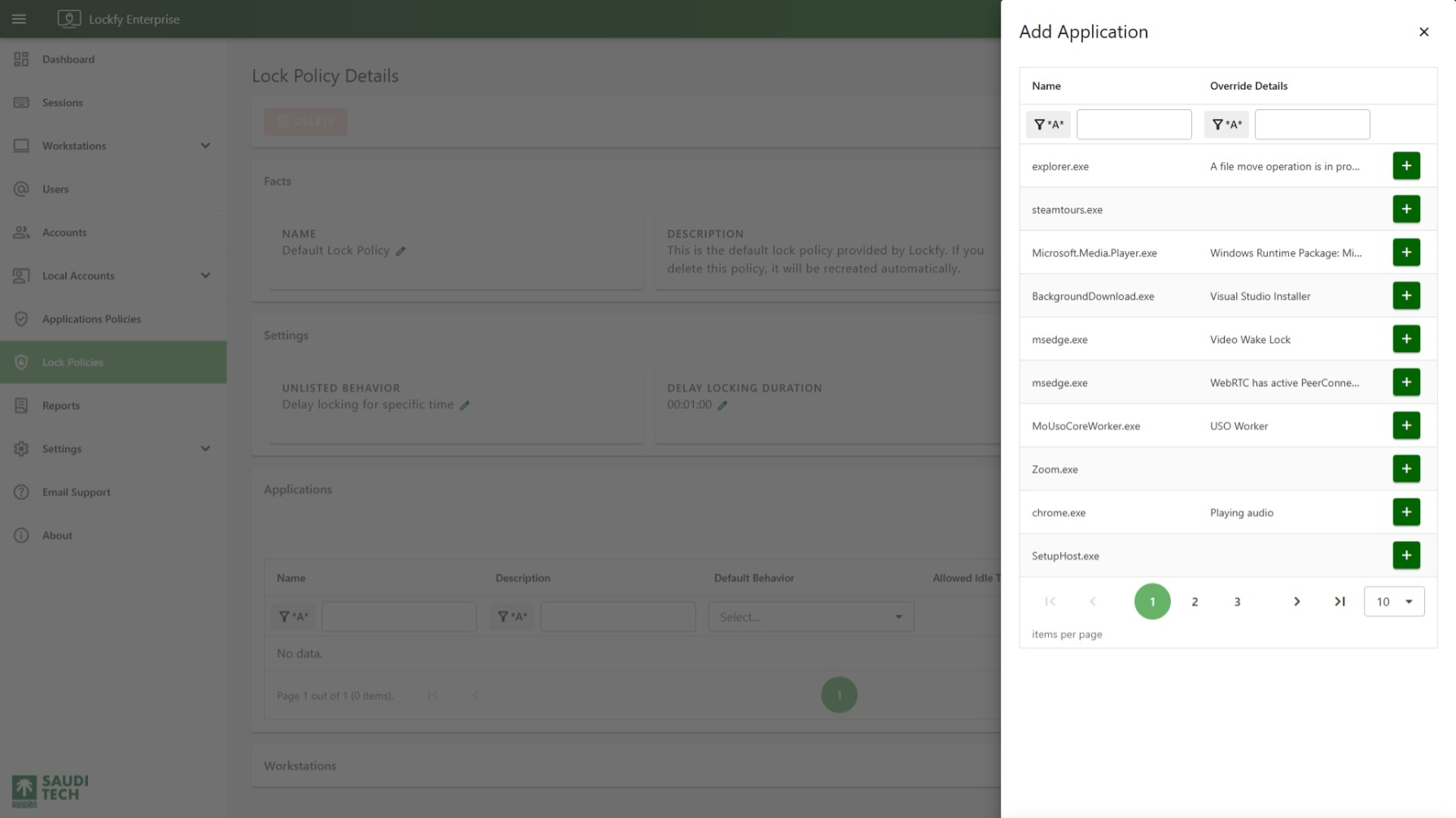
Select in the Applications section to open the Add Application panel.
The list is populated from overrides detected by the agent. It includes the executable name and any captured override details that explain why the process may affect lock behavior.
Use the panel filters to search by:
NameOverride Details
Select the button next to an item to configure how the policy should treat that application.
Configure Application Override
Section titled “Configure Application Override”
After selecting an application from the side panel, Lockfy opens the configuration dialog for that override.
The dialog includes:
Executable Name: The detected executable name.Override Details: Additional context about the detected override behavior.Default Behavior: Choose betweenIgnore offenders & lockandDelay locking for specific time.Allowed Time: The application-specific delay duration used when delay mode is selected.Notification Settings: Choose whether toNotify on idleorDo not notify on idlewhile the application-specific delay is active.
If you choose Ignore offenders & lock, Lockfy ignores the override and locks the workstation as soon as idle is detected. If you choose Delay locking for specific time, Lockfy delays the lock only for the configured duration for that application.
The notification setting controls whether the user sees an idle warning while Lockfy is temporarily allowing the workstation to remain unlocked. This is useful when the user may need to intervene from the mobile app before leaving the device unattended.
Select Save to add the application override to the policy, or Cancel to close the dialog without saving.
Workstations
Section titled “Workstations”The Workstations section lists devices assigned to the selected lock policy. Use it to review which workstations inherit these settings and to identify where the policy is applied.
Workstations Table Actions
Section titled “Workstations Table Actions”- download Export the current data set to Excel.
- sync Refresh the list.