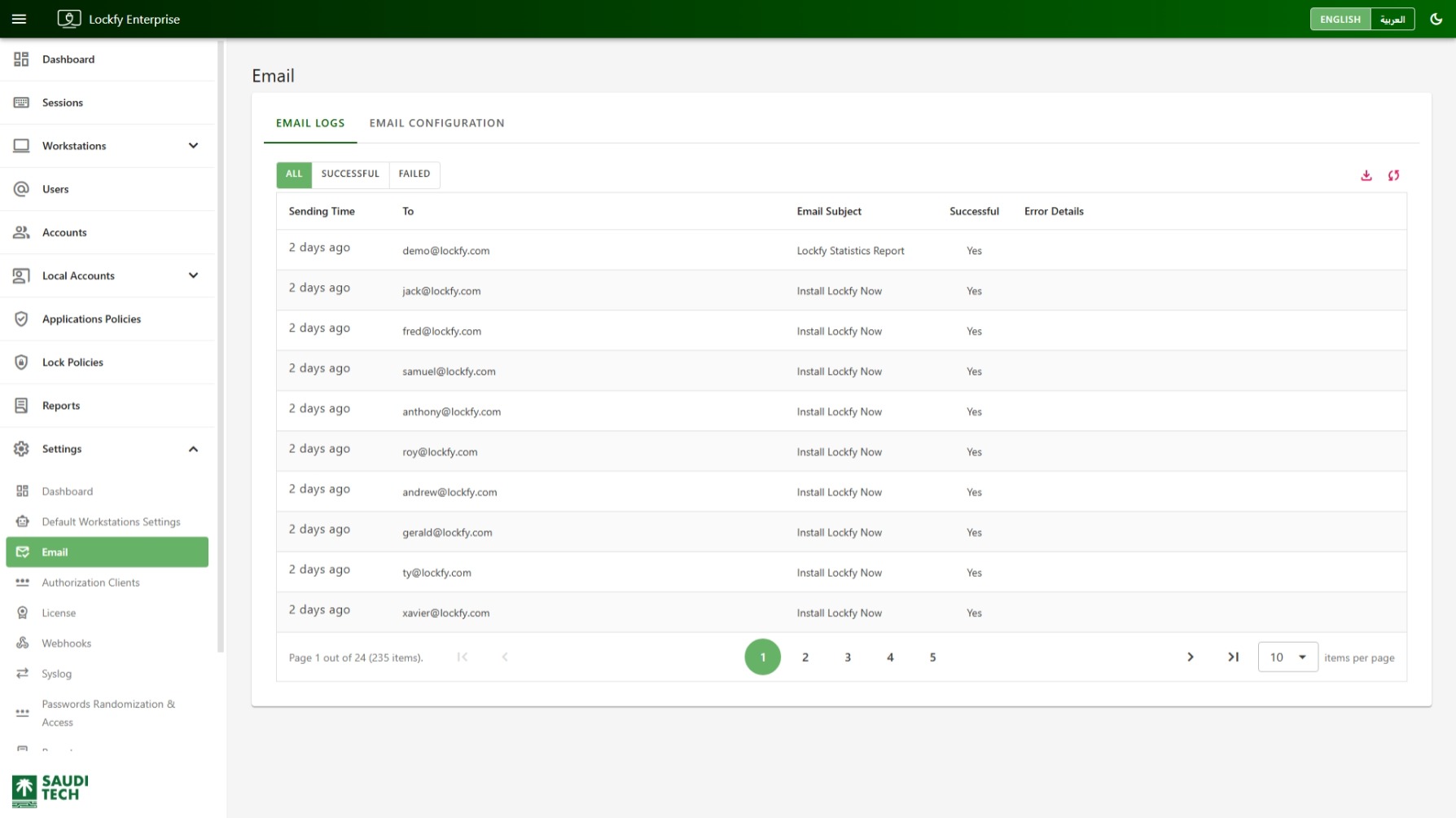
Use the Email page to review outbound email activity and configure the service Lockfy uses to send notifications, reports, and other system-generated messages. The page contains three tabs: Email Logs, Email Configuration, and Queue.
Email Logs Tab
Section titled “Email Logs Tab”The Email Logs tab shows a history of email delivery attempts made by the system.
The table shown includes the following columns:
Sending Time: When the message was sent.To: The recipient email address.Email Subject: The subject line of the message.Successful: Whether the delivery was successful.Error Details: Any delivery error returned by the sending service.
The tab also includes quick filters so you can focus on a specific delivery state:
AllSuccessfulFailed
Use this view when validating new email settings or investigating why notifications were not delivered to a user.
This page is also the first place to check if scheduled report emails are not arriving as expected.
The table supports pagination so you can move through older log entries.
Email Configuration Tab
Section titled “Email Configuration Tab”
The Email Configuration tab allows you to choose one of two sending methods:
SMTP: Use your organization’s SMTP service.Lockfy's default email service: Use the default Lockfy-managed sending service.
Only one option can be active at a time.
SMTP Configuration
Section titled “SMTP Configuration”When SMTP is selected, the page exposes the fields needed to connect to your mail server:
Sender From AddressSMTP ServerSMTP PortSMTP User NameSMTP PasswordUse SSLTest Email Address
Select Test & Save to validate the configuration and store the settings.
This mode should be used when your organization requires outbound email to be routed through its own mail infrastructure.
Lockfy Default Email Service
Section titled “Lockfy Default Email Service”
When Lockfy's default email service is selected, the configuration is simplified. The page only requires a Test Email Address, since the underlying sending service is handled by Lockfy.
Select Test & Save to verify delivery and apply the selection.
This option is useful when you do not want to maintain SMTP credentials or when you want the simplest email setup.
Queue Tab
Section titled “Queue Tab”Lockfy does not hand every message straight to the mail server. Outbound mail is queued and sent at a controlled rate, and this tab shows the state of that queue.
Pending in queue: Messages accepted by Lockfy and waiting to be sent.Retrying: Messages whose first send attempt failed and which are being retried.Oldest queued: The age of the message that has been waiting longest. This is the number to watch — a steadily rising value means the queue is draining more slowly than it is filling.
The queue is only used when the SMTP provider is active. With Lockfy’s default email service the tab reports nothing to show.
Check this tab first when someone reports that a notification or scheduled report did not arrive. A large Pending in queue with a growing Oldest queued points at throughput — see the rate limits under Email Configuration. Messages in Retrying instead point at the mail server rejecting or dropping the connection, and the reason will be in the Email Logs tab.
Choosing a Sending Method
Section titled “Choosing a Sending Method”Choose SMTP when you need to use your own email gateway, credentials, or transport security settings.
Choose Lockfy's default email service when you want a simpler managed option and do not need custom SMTP routing.
Operational Notes
Section titled “Operational Notes”After changing the email configuration, send a test message before relying on reports or notification workflows. If delivery fails, review the Email Logs tab for the corresponding error details.
Related page: Reports Settings.