Hierarchy
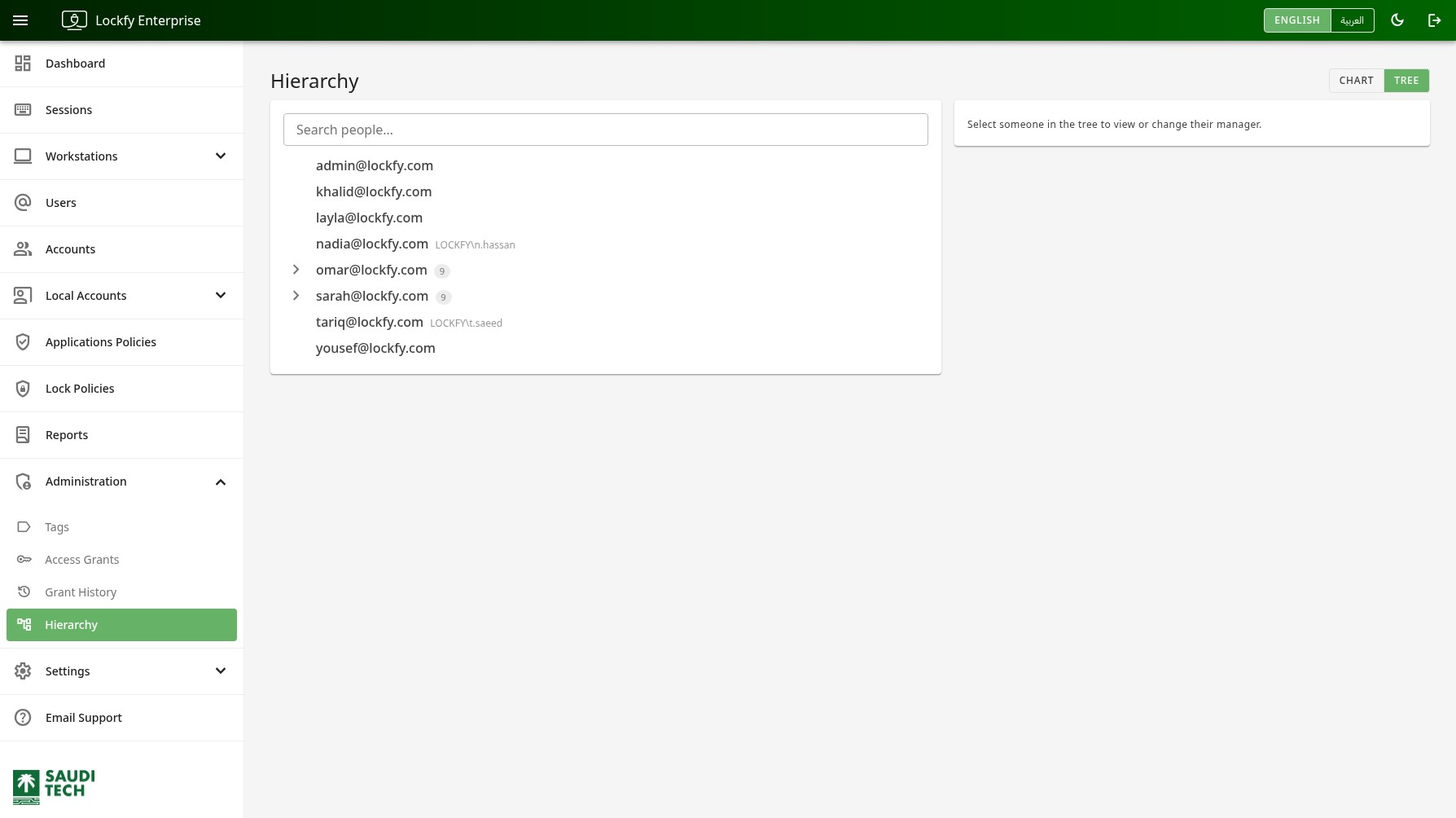
The hierarchy records who reports to whom. Lockfy uses it for one purpose: so that access can be granted to a manager over their own team, without anyone having to maintain a tag that mirrors the org chart by hand.
Set the hierarchy up before issuing team-based grants on the Access Grants page — a manager with no reports recorded here grants access to nobody.
The page offers two views of the same data, selected at the top right:
TREE: An indented list. People with reports can be expanded, and the number beside a name is how many people report to them, directly or indirectly.CHART: The same relationships drawn as an org chart.
The Search people... box filters to a single person and their line.
Viewing and changing a manager
Section titled “Viewing and changing a manager”Selecting someone opens their details on the right, showing their current manager and letting you change it. Setting a manager to nobody makes that person a root of the tree.
A person can have only one manager. Lockfy rejects a change that would make the reporting line circular — you cannot set someone’s manager to a person who already reports to them, directly or indirectly.
Where reporting lines come from
Section titled “Where reporting lines come from”Reporting lines are set here, or imported from a directory. When a person’s manager comes from a directory sync, that source is shown beside their name and the value is refreshed on each sync — a change made here will be overwritten on the next one.
Effect on access
Section titled “Effect on access”Changing the hierarchy immediately changes what team-based grants cover, because those grants are resolved against the current reporting lines every time they are used.
Moving someone under a different manager therefore moves the access with them: the new manager’s team-based grants start covering that person, and the old manager’s stop. It is worth reviewing Access Grants after a reorganization.