Workstation Details
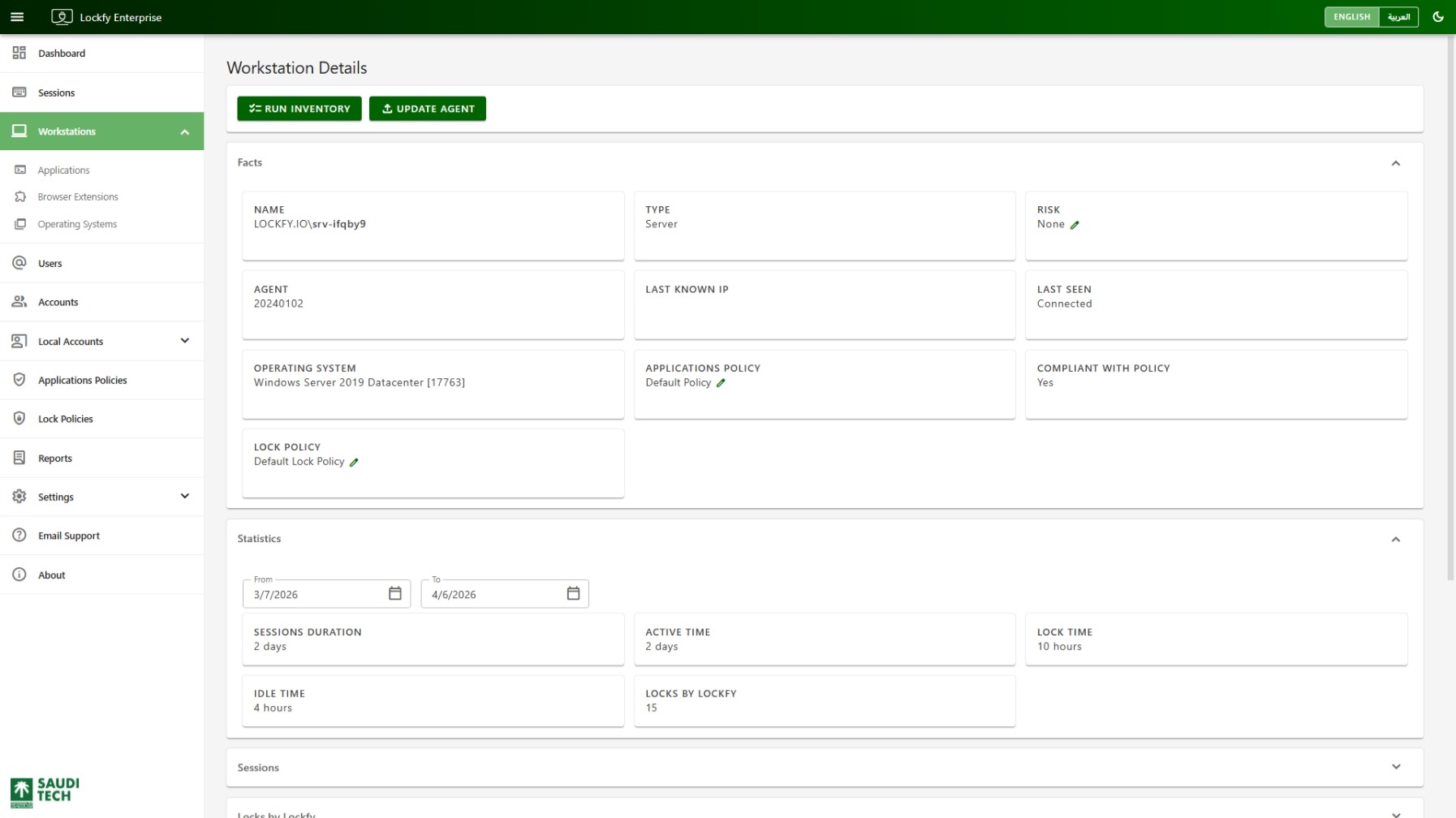
The workstation details page brings together the operational state of a single endpoint. Use it to review connectivity, assigned policy, session history, installed software, local account state, and Lockfy activity on that device.
This page connects several other parts of the portal, especially Sessions List, Applications Policies List, Lock Policies List, and Local Accounts List.
Alerts and Actions
Section titled “Alerts and Actions”The top section highlights important conditions, such as:
This workstation was first seen less than 48 hours ago.This workstation is X Risk.
Depending on the workstation state, the page can expose the following actions:
Run Inventory: Trigger a full inventory for installed applications, browser extensions, and local accounts. Requires a connected workstation.Update Agent: Update the installed agent when the device is connected and the current version is outdated.
Workstation Facts
Section titled “Workstation Facts”This section summarizes the key properties of the workstation.
Name: The name of the workstation.Type: Desktop, Laptop, or Server.Risk: The workstation-level risk classification. Editable.Agent: The installed Lockfy agent version.Last Known IP: The last IP address reported for the workstation.Last Seen: The most recent time the workstation connected to the server.
Some of these are not read-only. Risk, and the assigned Lock Policy and Applications Policy, can be changed directly from this section by an administrator with permission to control the workstation.
Operating System: The operating system and build reported by the workstation.Applications Policy: The applications policy assigned to the device.Compliant with Policy: Whether the workstation currently complies with its assigned applications policy.Lock Policy: The lock policy assigned to the device.Locks by Lockfy: Number of times Lockfy locked sessions on this workstation.
Statistics
Section titled “Statistics”The statistics section summarizes workstation activity over the selected time range.
Session Duration: Total elapsed time for sessions that ran on the workstation.Active Duration: Total time users were active on the workstation.Total Idle Duration: Total time sessions on the workstation were idle and unlocked.Total Lock Duration: Total time sessions on the workstation remained locked.Locks by Lockfy: Number of times Lockfy locked sessions on the workstation.
Sessions
Section titled “Sessions”This section lists sessions that ran on the workstation, including both active and historical records.
Quick filters include:
All SessionsActive SessionsIdle & Unlocked
The table header includes the following quick actions:
- download Export the current data set to Excel.
- sync Refresh the list.
Each column contains filters depending on its type. You can filter based on a single or multiple columns.
Each row can link back to related records such as the session details page or the user details page.
Locks by Lockfy
Section titled “Locks by Lockfy”This section records lock actions that Lockfy initiated on sessions associated with the workstation.
The table header includes the following quick actions:
- download Export the current data set to Excel.
- sync Refresh the list.
Installed Applications
Section titled “Installed Applications”This section lists applications detected on the workstation. Lockfy combines multiple Windows data sources to improve software visibility, including installations that may not require administrative privileges.
Quick filters include:
Currently InstalledUninstalled
Selecting an application name opens the related application details page.
The table header includes the following quick actions:
- download Export the current data set to Excel.
- sync Refresh the list.
Active Compliance Requirement
Section titled “Active Compliance Requirement”This section lists the actions required to bring the workstation into compliance with the assigned applications policy. It can be empty when the workstation is already compliant.
Use this section together with Applications Policy Details when you need to understand why the workstation is non-compliant.
The table header includes the following quick actions:
- download Export the current data set to Excel.
- sync Refresh the list.
Installed Browser Extensions
Section titled “Installed Browser Extensions”This section lists browser extensions detected on the workstation. Lockfy supports both Chrome and Edge and scans all available browser profiles on the device.
Quick filters include:
Currently InstalledUninstalled
Selecting an extension name opens the related browser extension details page.
The table header includes the following quick actions:
- download Export the current data set to Excel.
- sync Refresh the list.
Local Accounts
Section titled “Local Accounts”This section lists local accounts discovered on the workstation.
Quick filters include:
Current & Enabled: Local accounts that are currently enabled.Never Randomized: Accounts whose password has never been randomized by Lockfy.Randomization Overridden: Accounts whose password was changed outside Lockfy after a previous randomization.Randomized: Accounts whose password is currently managed through Lockfy randomization.
Each row can expose the following actions:
- Enable or disable the local account. Requires a connected workstation.
- Randomize the local account password.
- Generate a temporary local account password. Requires a connected workstation.
The table header includes the following quick actions:
- download Export the current data set to Excel.
- sync Refresh the list.
Password generation and randomization behavior in this section follows the rules configured in Passwords Randomization and Access.
Passwords Audit Trail
Section titled “Passwords Audit Trail”This section records password-related actions taken on local accounts on the workstation, including operator actions and agent confirmations.
For the dedicated audit view, see Passwords Audit Trail.
The table header includes the following quick actions:
- download Export the current data set to Excel.
- sync Refresh the list.
Running Processes
Section titled “Running Processes”This section lists processes currently running on the workstation. It is most useful when investigating suspicious activity or validating whether unauthorized software is active.
This feature requires a connected workstation.
Each row includes the following actions:
- info
More details— open the process information panel, showing the executable’s file and version details as reported by the endpoint. - cancel
Terminate Process— end the process on the remote workstation.
Viewing processes requires permission on the workstation; administrators without it see a message in place of the list rather than an empty table.