Group Policy Objects (GPO)
To deploy the Lockfy Agent by using Active Directory Group Policy, make sure you have the following:
- Administrative access to Active Directory.
- The Lockfy Agent deployment PowerShell script.
- A Group Policy scope that targets the intended workstations.
Open “Group Policy Management” Console
Section titled “Open “Group Policy Management” Console”From the Start menu, search for Group Policy Management and open it.
Create a new Group Policy Object
Section titled “Create a new Group Policy Object”Expand Forest » Domains » Your domain.
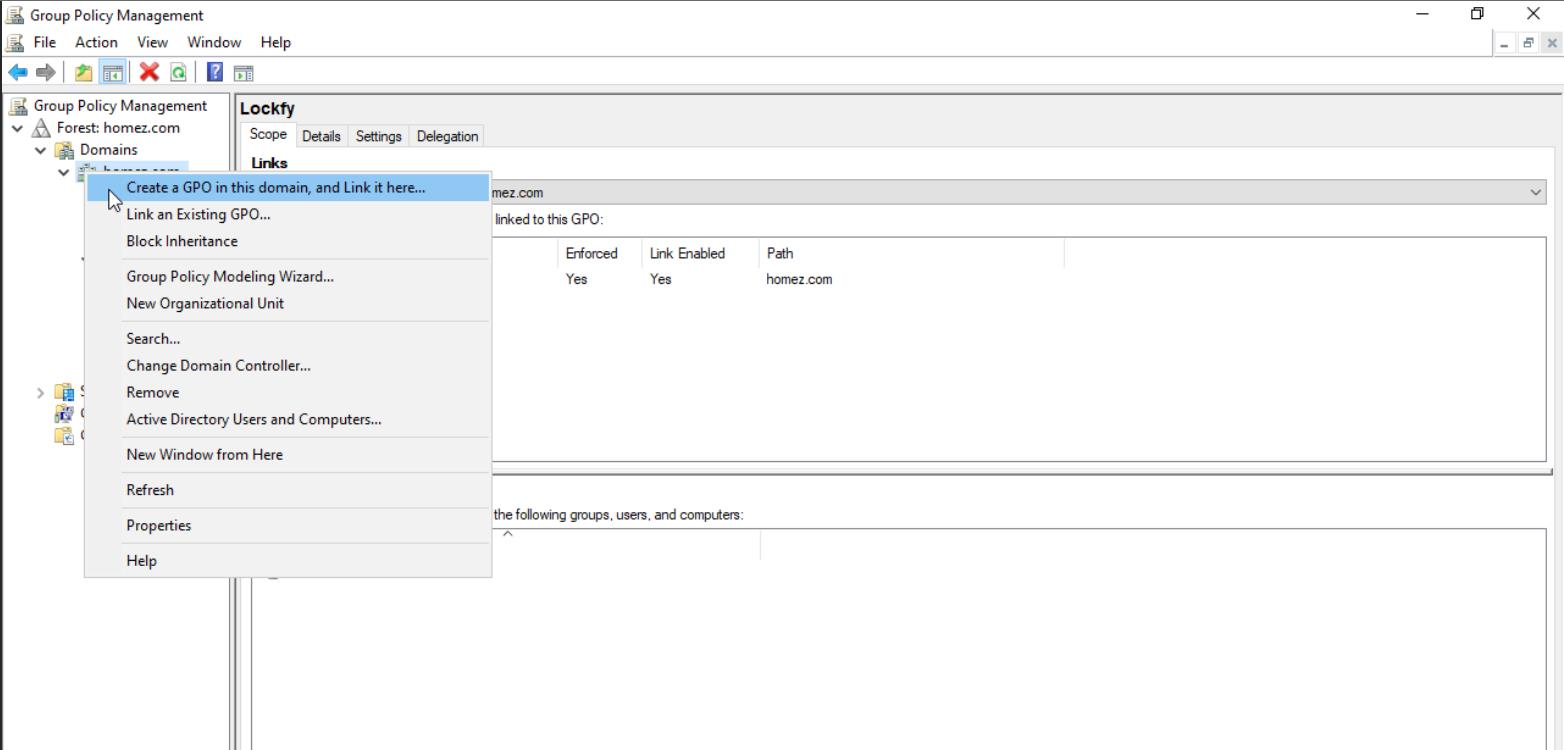
Right-click Your Domain and select Create a GPO in this domain, and Link it here….
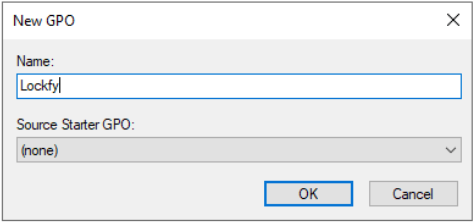
Enter Lockfy in the Name field and select OK.
Edit The New GPO
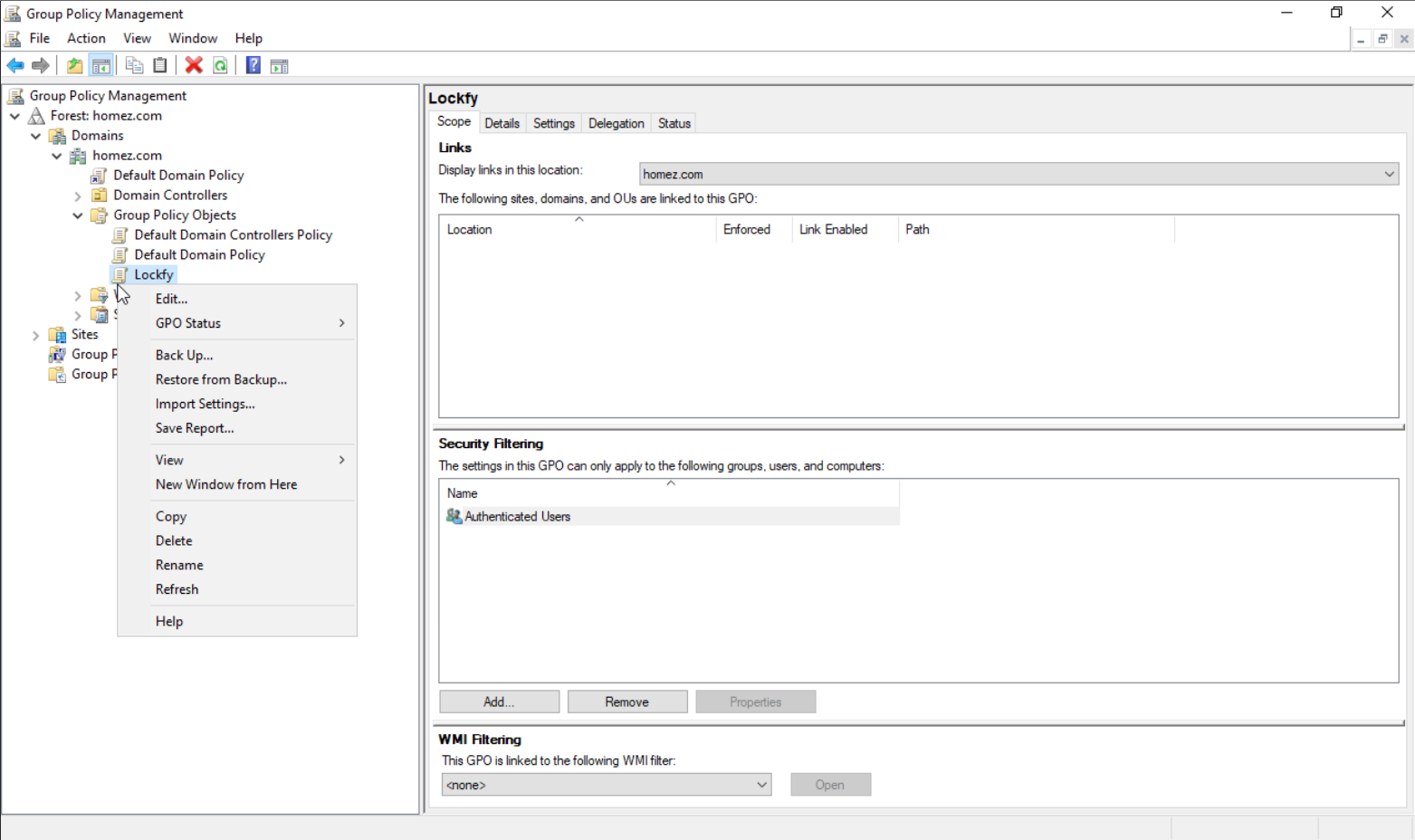
Section titled “Edit The New GPO”Right-click the new Lockfy Group Policy Object and select Edit.
Add PowerShell Script to Startup
Section titled “Add PowerShell Script to Startup”Expand Computer Configuration » Policies » Windows Settings and select Scripts (Startup/Shutdown).
Double-click Startup in the right-hand pane.

Copy the signed deployment script provided by your organization into the scripts folder opened by the GPO editor. In the example shown, the file name is LOCKFY_AGENT_DEPLOYMENT_GPO_SIGNED.ps1.
Add Script to GPO
Section titled “Add Script to GPO”Open the PowerShell Scripts tab and select Add.

Select Browse and choose LOCKFY_AGENT_DEPLOYMENT_GPO_SIGNED.ps1 from the scripts folder you used in the previous step.
In Script Parameters, add the required values:
-BaseUrl "{baseUrl}" -ClientId "{clientId}" -ClientSecret "{clientSecret}"If you need to verify or obtain the agent client values first, review Authorization Clients.
Select Save, then Apply, and close the Group Policy editor.
The script will run at startup for devices targeted by the GPO.
For one-off installations or testing, use the PowerShell (Manual) guide instead.